Assign Permissions to Users or Groups
As a System Administrator, you assign different levels of permissions to users or groups. Control the level of permission and assign a user or a group to a profile, library, or model so that they have specific access. A user can be assigned to multiple profiles, libraries, or models. For example, a user can have full permissions on one library and only view permissions on another.
To assign permissions, follow these steps:
-
Go to Application Menu > Permissions.
The Permissions page appears.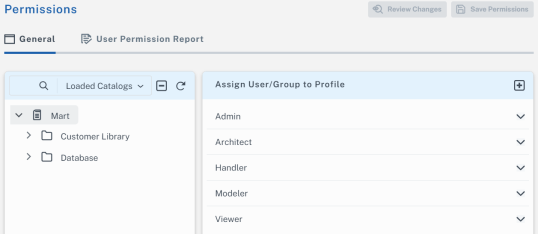
-
On the Catalog pane, select the libraries that you want the user to access.
-
In the Assign User/Group to Profile pane, click a profile to view the list of users or groups.
-
Click
 to search and select new users or groups.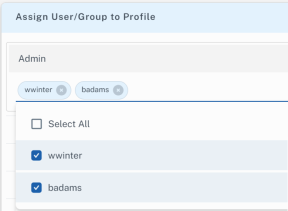
-
Click Review Changes to verify your permission updates before saving them.
The Review Uncommitted Permission Changes displays your permission updates.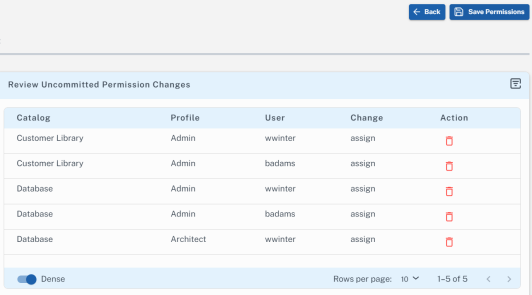
You can click under the Action column to delete a permission.
 -
Click Save Permissions.
The selected users or groups acquire the profile's permissions.